
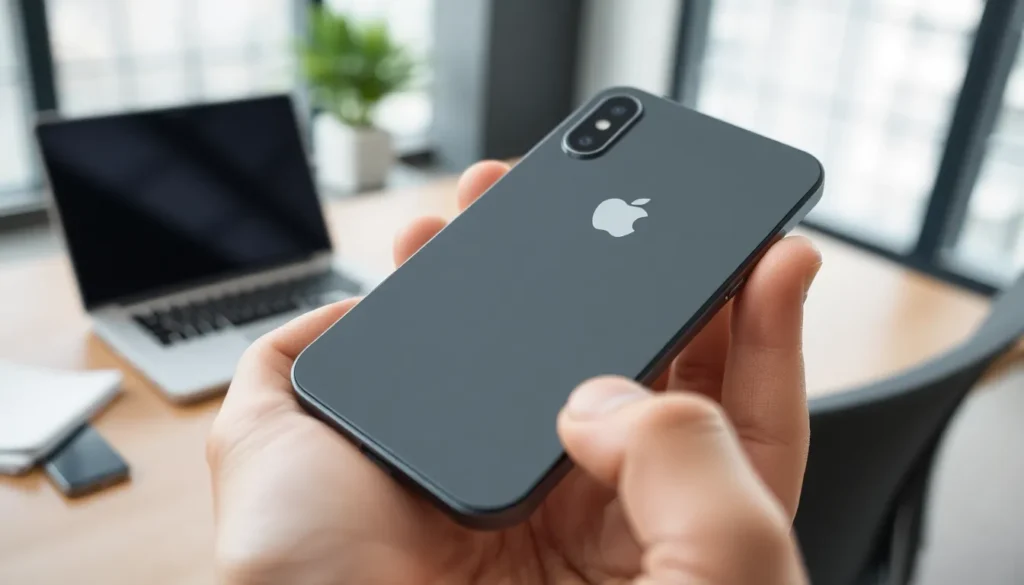
Ever found yourself in a meeting or a crowded café, only to realize your iPhone’s gone rogue, stuck in silent mode? It’s like having a pet cat that refuses to come when called—frustrating and a little embarrassing! But don’t worry, you’re not alone in this silent struggle.
Understanding Silent Mode on iPhone
Silent mode is a feature on the iPhone that disables sound notifications. Users activate this mode for various reasons, often to maintain focus or avoid disturbances.
What Is Silent Mode?
Silent mode mutes incoming calls, alerts, and notifications. It functions through a physical switch located on the side of the device. This switch easily toggles the phone between silent and ring modes. Indicators also appear on the screen, helping users quickly identify the current status. Silent mode doesn’t affect media playback, allowing users to listen to music or watch videos without sound interruptions.
Why Use Silent Mode?
Using silent mode offers several advantages. It helps maintain an undisturbed environment, especially in meetings, classes, or public places. Users appreciate the ability to avoid distractions while still receiving notifications through vibrations. Some prefer the quietness it brings during important gatherings or social events, allowing for more focused engagement. Furthermore, it prevents potential embarrassment from loud ringtones in inappropriate settings.
Methods to Take iPhone Off Silent Mode
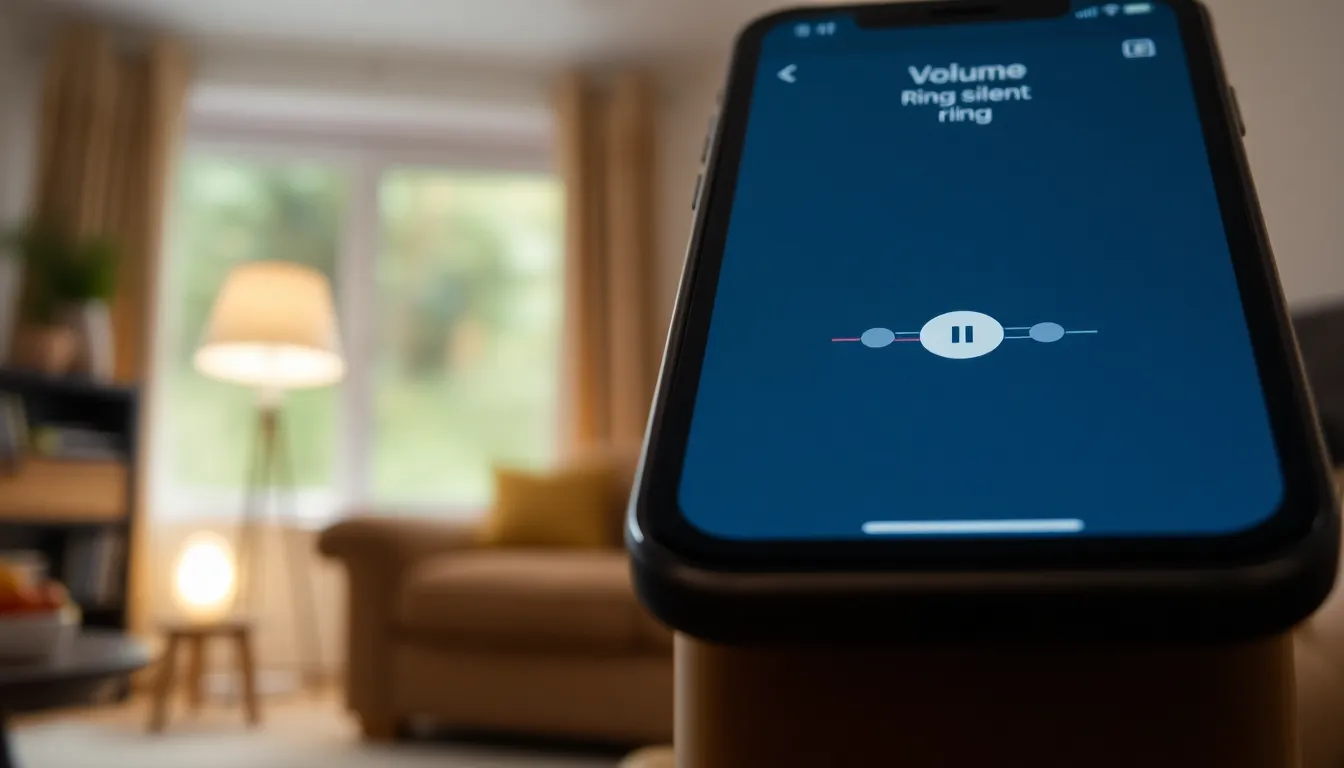
Taking an iPhone off silent mode can quickly restore sound notifications. Users have several effective methods to achieve this.
Using the Ring/Silent Switch
The ring/silent switch, located on the side of the iPhone, offers a simple way to toggle sound. It has two positions: up for ring mode and down for silent mode. Users should check the position of this switch, ensuring it points upward to activate sound notifications. A quick glance at the screen will display an icon indicating the phone is in ring mode.
Adjusting Volume Settings
Adjusting the volume settings also helps take the iPhone off silent mode. Users can press the volume up button on the left side of the device. The on-screen volume slider will appear, showing the current sound level. Ensuring the volume is turned up allows notifications to be heard. Users can also navigate to the Settings app, select Sounds & Haptics, and adjust the Ringer and Alerts slider.
Accessing Do Not Disturb Mode
Do Not Disturb mode silences calls and notifications, but disabling it restores full functionality. Users can access this feature through the Control Center by swiping down from the upper-right corner of the screen. Tapping the crescent moon icon disables Do Not Disturb when it’s highlighted. Checking that it is grayed out confirms the mode is off, allowing sound notifications to come through.
Troubleshooting Tips
Addressing silent mode issues requires a few practical steps. Users might need to check their settings or restart their iPhone for a quick fix.
Checking Settings
Investigating the settings can reveal potential causes for sound issues. First, users can go to Settings, then Sounds & Haptics. Next, making sure the “Ringer and Alerts” volume is turned up can restore notifications. Users might also want to look for the “Change with Buttons” option and enable it, allowing them to adjust alert volumes with the side buttons. Checking if Do Not Disturb is active is vital as well; toggling it off can restore sound notifications.
Restarting Your iPhone
Restarting the device often resolves many technical glitches. To restart, users can press and hold the power button until the slider appears, then swipe to power off. After the iPhone shuts down completely, waiting a few seconds before turning it back on can refresh the system. A simple restart can sometimes remedy issues related to silent mode, ensuring that notifications return to normal operation.
Additional Features Related to Silent Mode
Adjusting silent mode settings can enhance user experience on the iPhone. Customizing vibration notifications enables users to receive alerts even when sound is off.
Customizing Vibration Settings
Users can tailor vibration settings to suit their preferences. Accessing the “Sounds & Haptics” menu in Settings allows them to choose different vibration patterns for calls, messages, and alerts. Selecting “Ringtone” or “Text Tone” options reveals vibration settings at the bottom of the screen. Custom patterns can be created, adding a personal touch. Allowing distinct vibrations for specific contacts can also help prioritize important calls while remaining discreet during silent hours.
Software Updates and Notifications
Keeping the iPhone updated ensures optimal functionality. Apple frequently releases software updates that improve performance, fix bugs, and enhance features, including notification settings. Regularly checking for updates under “General” in Settings helps avoid issues, such as notifications not appearing while on silent. Users can enable automatic updates to streamline this process. Additionally, adjusting notification settings can prevent important alerts from being missed, even when the phone is on silent mode.
Getting an iPhone off silent mode is a straightforward process that can save users from unnecessary frustration. By utilizing the physical ring/silent switch the volume buttons and the Control Center options users can quickly restore sound notifications.
In addition to these methods troubleshooting steps can help address any persistent issues. Customizing vibration settings and keeping the device updated further enhances the overall experience. With these tips users can ensure they never miss an important call or notification again.

